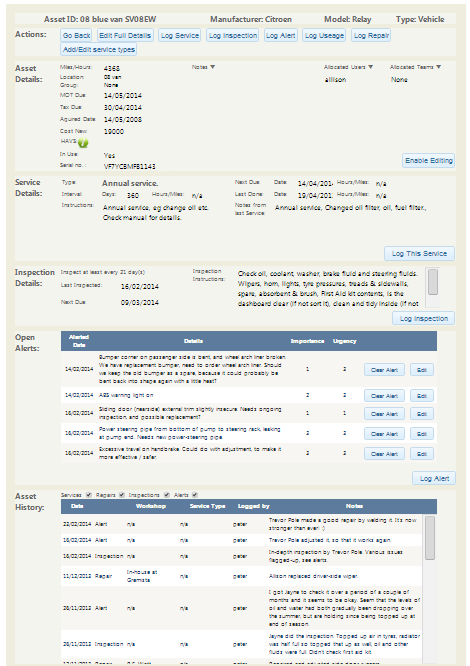
 Finding where to log and view information is usually fairly straightforward within ToolFleet. We’ve tried to make the navigation as intuitive as possible, so there is very often more than one way to log the same type of information. However, in order to get the best out of the system, you’re best to try to remember the differences between inspections, servicing, alerts and repairs.
What are the differences between inspections, servicing, alerts and repairs?
When you’re viewing an asset’s maintenance history and current requirements, you get a clearer picture of what’s what, if you’ve made an effort to separate out your inspections, servicing and repairs at the data-logging stage.
- You shouldn’t log a repair as a service, and vice versa. If repairs are carried out at the same time as a service, you’re best to try to separate these out so far as practicable (you can log a repair from within the service form).
- Remember that inspections are usually undertaken by the user of a vehicle or machine (to regularly check things like tyre pressures and whether the lights are working), whereas servicing is usually done by a maintenance engineer.
- If you come across an asset defect, when you’re conducting an inspection or service, you should raise an ‘alert‘, detailing what the problem is. An alert is something that needs attention. Alerts appear in prioritised order, under the ‘alerts’ and ‘all priorities‘ lists. Your managers and maintenance engineers use these lists to ensure that the most urgent and critical issues get dealt with, in priority order. It is possible to raise alerts which are not connected with assets at all, so you can use them to create ‘to-do’ lists and general reminders, if you like.
- When you create an alert. Be careful when allocating the ‘importance’, ‘target date’ and ‘deadline’. Don’t rate a minor issue as being any more important or urgent than it needs to be, otherwise the REALLY important and urgent issues will not be prioritised!
- You have opportunity to detail how you’ve dealt with an ‘alert’, when you ‘clear’ it, in the comments box. If clearing an alert involved a repair, and you’d like more in-depth information about the repair (such as the workshop who did it, the labour and parts costs etc), you can also log a full-blown ‘repair’ from within the ‘clear alert’ form.
Remember to hit ‘submit’
Note – The selections you make, and any typing you do, will not be stored in ToolFleet until you hit the “save” / “submit” / “log” button on each page. If you make changes to data on a page, but navigate away from that page without saving, your edits will be lost. The benefit of this system, is that if you accidentally over-write existing data on a form, you can simply hit the “cancel” button or close the form, and the original data will be preserved (the only exception to this, is the ‘in-use’ column on the ‘view-assets’ page, where the moment you change a checkbox, that change will be effected immediately).
Logging info on paper forms
The alternative to using the app, is to fill in paper forms, and either log it all in when you get access to a computer again, or get someone else to log your data for you. Always submit “paper” data for input into ToolFleet without undue delay, so that your info within the app is kept up-to-date.
‘Mobile’ site vs ‘Desktop’ site
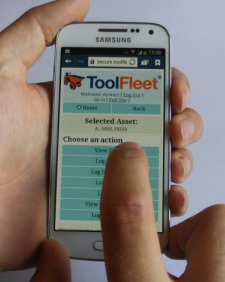 There are two versions of the site, depending on what type of device you access it from:
- The “desktop” site, which has full functionality, and is designed to be accessed either by a desktop computer or a laptop.
- The “mobile” version of the site is presented to you by default when you access it from a device such as a smartphone. Its functionality is limited slightly, but it’s considerably easier to use on a smaller screen, and makes everyday tasks such as logging inspections and servicing, ‘moving’ assets, and raising alerts, straightforward.
Note – You can access the “desktop” version of the site, on mobile devices, if you really want to. There’s a link to the “full” site on the home page of the mobile version. It’ll work, but prepare yourself for a certain amount of zooming and scrolling! For this reason, if you’re using a mobile device, you’re better off using the “mobile” version of the site.
Similarly, it is possible that occasionally when you open the app on your mobile device, you could be presented with the ‘desktop’ version. This might happen if you have opted to view a different mobile site in the ‘desktop’ version and your mobile browser has retained this setting for other sites, or if you have opted to use the desktop version the last time you visited the ToolFleet site. In this case, you can navigate to the ‘mobile’ version of the site at any time, by hitting the button marked ‘Go to Mobile Site’, found under the ‘menu’ page.
1. What is ToolFleet?
2. Logging in.
3. Finding what you’re looking for, in the asset lists.
4. Logging information.
5. Raising ‘alerts’.
6. Moving an asset, and putting an asset in-use / out-of-use.
7. What’s ‘Group’ for?
8. What to do if you need help, or hit a technical difficulty.
9. A final word.